This is Avsaro, the business portal by Assist2go.
You open the portal and see right away where you stand: what is outstanding, what is overdue and what needs your attention today. Studio Voorbeeld is made up for this demo. When a customer pays late, you record the payment with one click on Betaald. Your subscriptions are there too, with the date of the next invoice.
Now a new quote. You click Offerte maken, pick the customer from your own list and start from a template, for example for a website or web shop. Text and terms are already in place.
In the editor you give the quote a title and read the introduction that is already written. What you deliver and what is not included sit in fixed text blocks, which prevents disputes later. Prices come from your service register and the total updates instantly, VAT included. A discount is a percentage or an amount. You set how long the quote is valid and which down payment you ask for, here thirty percent. In the live preview you see what your customer will read, before anything is sent.
Before sending, the portal checks the quote for missing details. You see exactly who receives the email. Once sent, the quote gets a fixed number, and the portal shows when your customer opens it.
Your customer gets a clean email with the quote as a PDF, your terms and a personal link. One click is enough.
The customer reads the quote on a page of their own, on phone, tablet or computer. Everything is in there: what you deliver, what it costs and how payment works. Optional items are chosen by the customer. Then comes the acceptance, in three steps. First the details and the confirmation of your terms. Then a signature, with a mouse or a finger, or typed via Schrijven. Finally a code by email, confirming it really is the customer. The portal keeps everything in an evidence file. The customer sees their acceptance with name, date and signature and gets the signed PDF.
Back in your portal the quote shows as accepted. The down payment invoice and the final invoice are already waiting as drafts. The timeline shows what happened, and the signed PDF with certificate is stored with the quote and also saved in OneDrive.
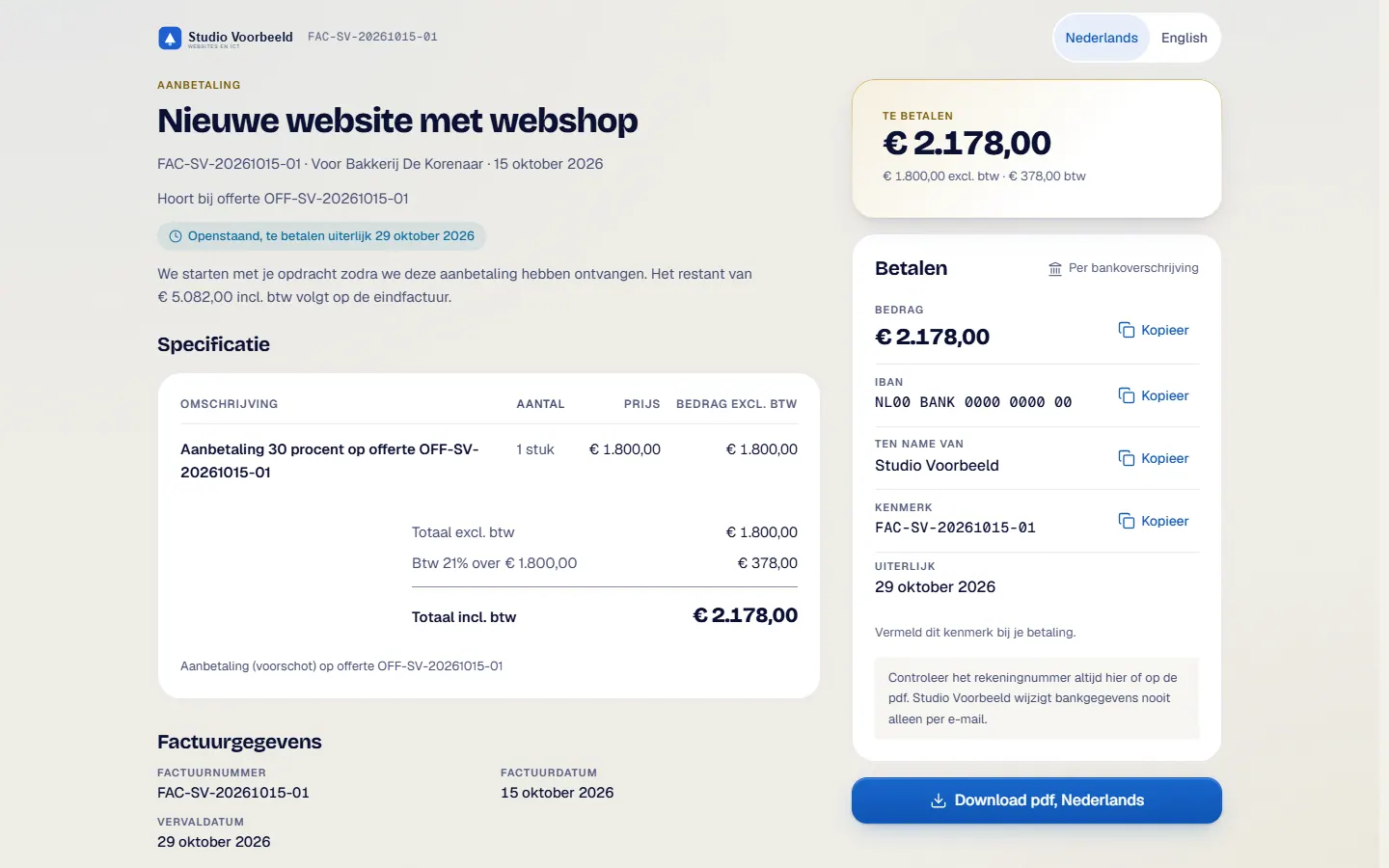
You review the down payment invoice with one click. The portal compares it with the signed quote, and you see the email your customer will get. Then you finalise and send it in one step: invoice number, PDF, email and a copy for Exact and OneDrive. For each part you see the status.
The customer opens the invoice on a page of their own. Paying with iDEAL runs through your own Mollie account. A bank transfer works too, with copy buttons for the details.
When a transfer arrives, you record the payment with one click on Betaald. Date and amount are already filled in. The invoice shows as paid, reminders stop and the figures are up to date.
The portal processes an iDEAL payment by itself. The invoice then shows as paid.
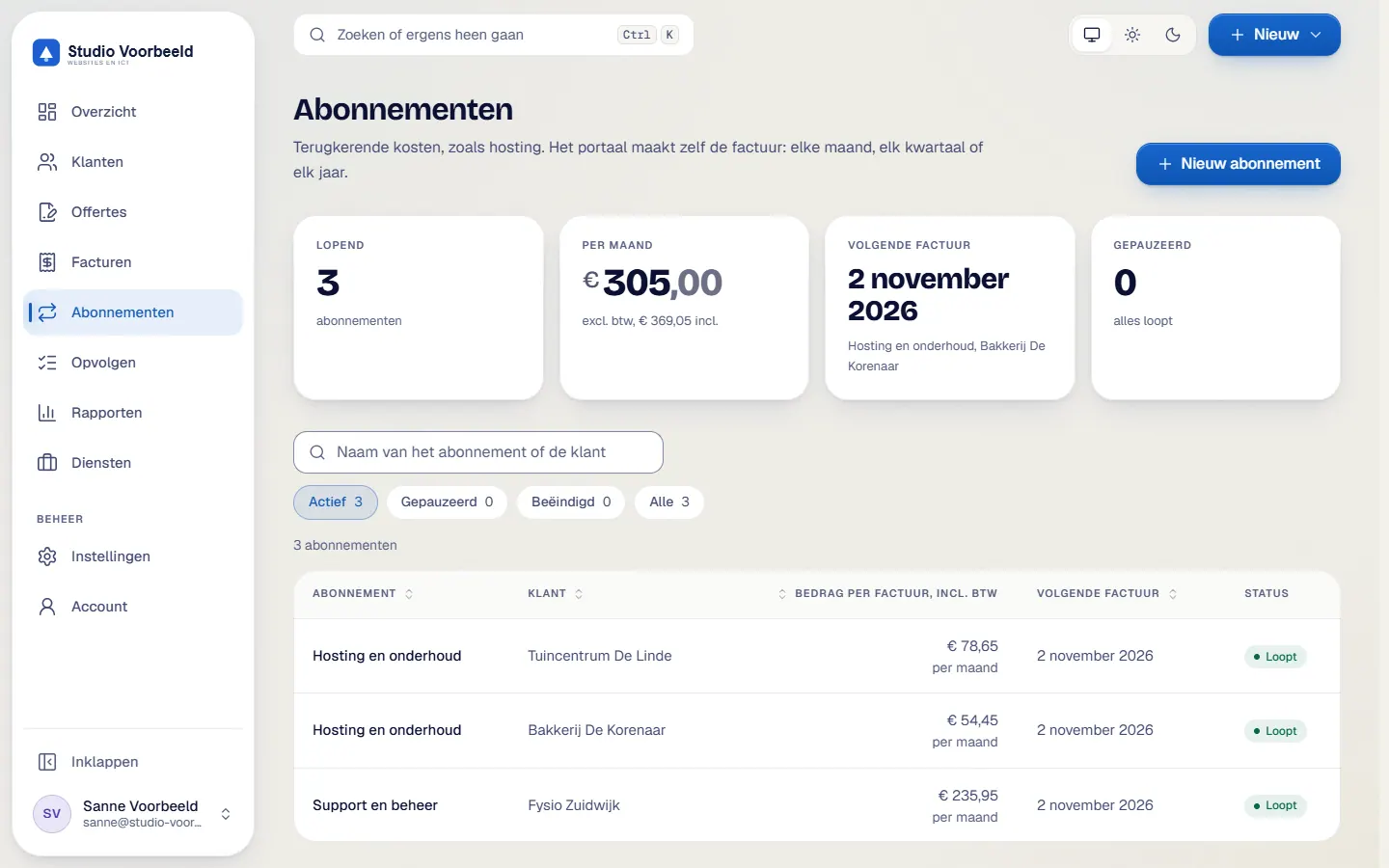
For recurring services, such as hosting or support, you use subscriptions. You set amount, VAT and payment term once. After that the portal creates the invoice every month. You choose whether it goes out at once or comes by first.
Under Rapporten you find revenue, VAT and outstanding amounts, calculated from your invoices. You choose a month, a quarter or a full year. Revenue is shown per month. The VAT on your sales is ready per quarter and per rate, to help with your VAT return. Under Debiteuren you see who still has to pay and for how long. And for your accountant you export everything as a CSV with one click.
All your customers sit in one list, with search and filters. In the customer file you see revenue and what is still outstanding, with the quotes, invoices and subscriptions of that customer below it.
An invoice you no longer want in view, you archive with a reason. The reason stays with the document. You find it again with the filter Gearchiveerd. And if you change your mind, one click puts it back.
Signing in takes a second step: a code from your authenticator app, with recovery codes as backup.
From quote to payment, all in one flow. Avsaro, the business portal by Assist2go. Want to know more? Visit avsaro.com.