
Create invoices and get paid

Invoices come from an accepted quote, from a subscription or from a free-form invoice. Your client gets an email with a pdf and a payment page. With Mollie connected the client pays by iDEAL and the portal marks the invoice as paid by itself.

  1. Quote
  2. Signature
  3. Invoice
  4. Payment
  5. Overview
Try it yourself, 30 minutes Request a call

Enter your name and email and you are in your own demo straight away. After 30 minutes everything is wiped.

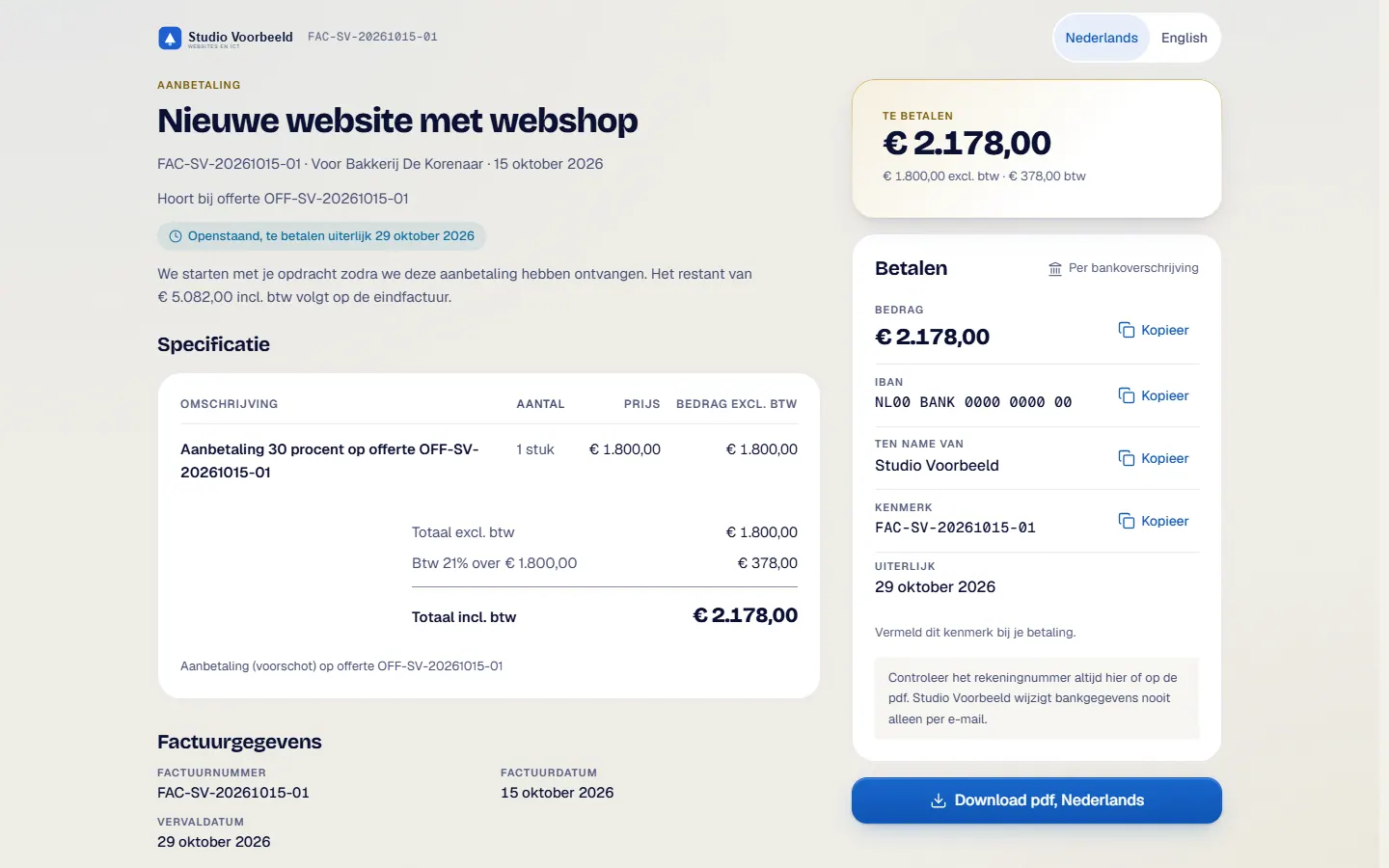
The invoice page as the client sees it: the amount, the reference and the payment details with copy buttons for amount, IBAN and reference. It lets the client transfer without typing errors.
Without Mollie the payment details sit on the invoice page with copy buttons and there is no payment button. The screens show the Dutch interface; invoices, client pages and emails exist in Dutch and English.

Who it is for

  • You retype invoices from a quote and keep a list of who has already paid.
  • You invoice deposits, final invoices, credit notes or clients abroad.
  • You want to send reminders without writing an email each time.

What it saves you

No retyping

When a quote is agreed, the portal creates the deposit invoice and the final invoice as drafts. Nothing goes out automatically. You check, adjust and send.

Paid without the paperwork

With Mollie connected the client sees a button to pay by iDEAL, and the invoice then turns to paid by itself. Without Mollie you register a payment with one click.

Reminders that run themselves

The portal has a reminder schedule running from 3 days before the due date to a formal notice 21 days after. By default they wait for your approval.

How it works, step by step

  1. Let the invoice come aboutAfter an agreement the draft invoices are ready. You can also create a free-form invoice, copy an invoice or start a final invoice from a quote.
  2. Check the contentsAdjust lines, quantities and discount. Choose the VAT rate: 21, 9 or 0 per cent, reverse charge or not taxed in the Netherlands. Set the invoice date and the payment term, from 0 to 120 days.
  3. Open 'Controleer en verstuur'You see a preview of the pdf and the email, and a checklist. For each invoice you choose whether a copy goes to Exact Online and to OneDrive.
  4. Finalise the invoiceOnce sent, the invoice cannot be changed. You correct it with a credit note, in full or in part.
  5. Your client paysWith Mollie connected there is a 'Betaal met iDEAL' button on the invoice page. The bank confirms and the invoice turns to paid by itself. Without Mollie the invoice page and the pdf show the payment details with copy buttons.
  6. Register and follow upWithout Mollie you check yourself whether the payment has arrived and click 'Betaald'. The date and amount are already filled in, and the reminders stop. If the payment is missing, you decide whether a reminder goes out.

The screenshots show Avsaro with sample data from the invented company Studio Voorbeeld. The portal interface is in Dutch; documents, client pages and emails come in Dutch and English.

Paying with and without Mollie

runs through your own Mollie account. You connect it yourself, and a new connection starts in test mode. Mollie charges an amount per transaction, which you pay to Mollie. Current rates are on mollie.com.

Without Mollie the invoice shows the payment details: amount, IBAN, account name, reference and the final date, with copy buttons. Once the money has arrived, you record the payment with one click.

Types of invoice and numbering

  • ordinary invoice
  • deposit (advance) invoice
  • final invoice, which offsets the deposit
  • credit note, for the whole amount or part of it

Numbers take the form FAC-A2G-YYYYMMDD-NN, restart each day, have no gaps and are never reused. You set the format yourself. An invoice from a quote carries the quote number as its file number.

Reminders

The schedule runs from 3 days before the due date to a formal notice 21 days after, and deposits have a shorter schedule. For each step you choose whether the portal sends by itself. Pausing asks for an end date and a reason. Statutory interest and collection costs are switched off by default. This is general information and not advice.

Schematic view of the invoice page with iDEAL

With Mollie: iDEAL

  1. Your client opens the invoice page and clicks Pay with iDEAL.
  2. The bank confirms the payment.
  3. The invoice is marked as paid automatically and the reminders stop.

Benefits

  • You do not have to find out who has already paid
  • Often paid quickly, because your client has nothing to type

Good to know

  • You pay Mollie an amount per transaction, not to us. Current rates are on mollie.com
  • You connect your own Mollie account
What the invoice page looks like without Mollie

Without Mollie: payment details

  1. The invoice page and the pdf show the amount, the IBAN, the account name, the reference and the final date, with copy buttons.
  2. Your client copies the details into their banking app.
  3. You check the payment and record it with one click. Date and amount are already filled in and the reminders stop.

Without Mollie the invoice page shows the payment details instead of a pay button.

Benefits

  • No cost per payment
  • No third-party connection needed

Good to know

  • You record the payment yourself once the money arrives
  • Your client copies the details into their banking app

Everything about invoices and payment

Frequently asked questions

Do I have to connect Mollie?

No. Without Mollie the client gets the payment details and you register the payment yourself. With Mollie the client can pay by iDEAL.

Can I still change an invoice?

While it is a draft, yes. Once final, no. You correct it with a credit note.

Next step

See how an invoice gets paid

In a demo you see how an invoice comes about from an accepted quote and gets paid, using sample data.

Try it yourself, 30 minutes Request a call

Enter your name and email and you are in your own demo straight away. After 30 minutes everything is wiped.

Get in touch