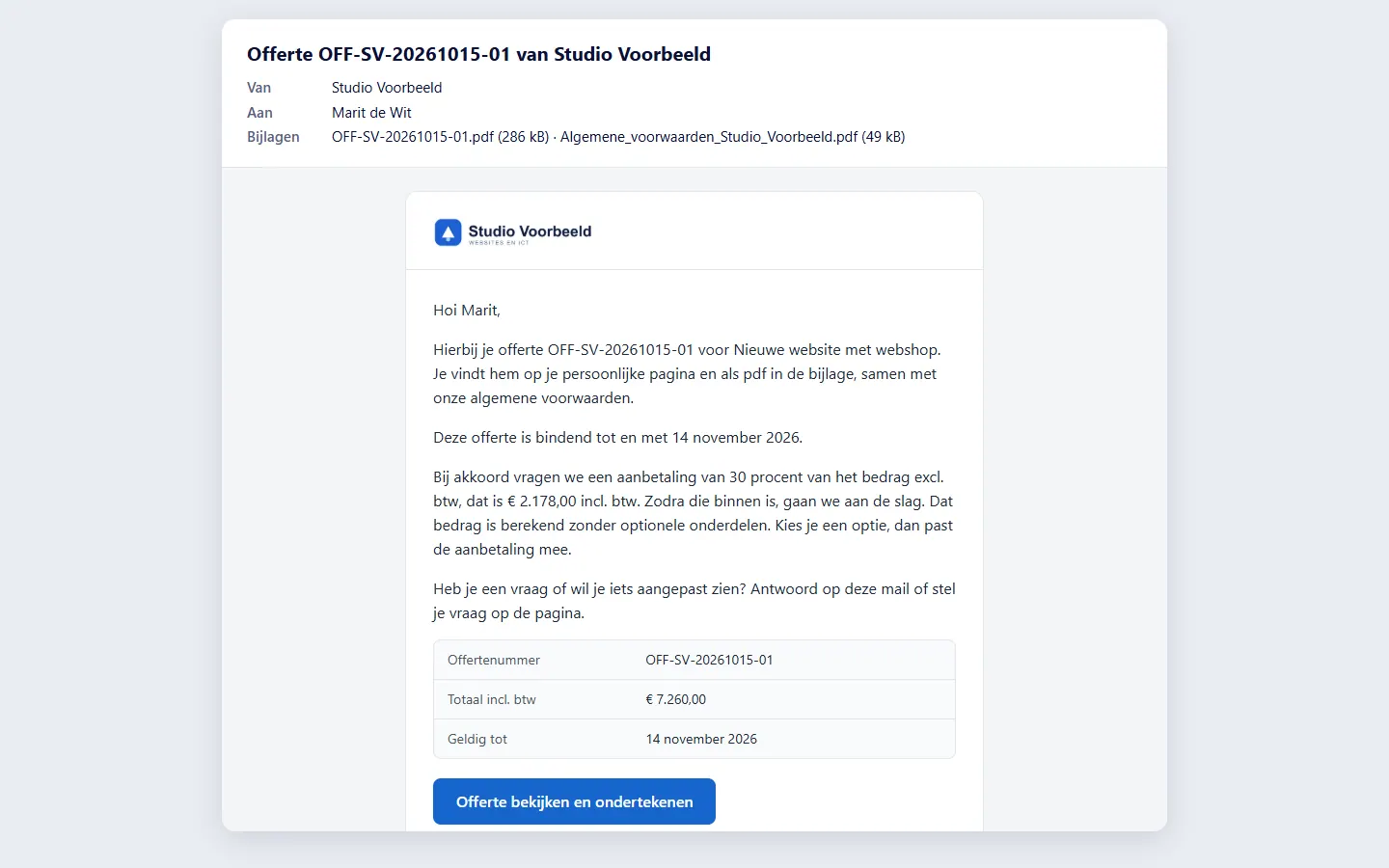
The email the portal sends for you
Quotes, invoices, reminders and confirmations go out from your own Microsoft 365 address. For each email you see whether it was sent, and you get notifications when something happens.
No account or sign-up needed: enter your name and email and you are in your own demo straight away. After 30 minutes everything is wiped.
Who it is for
- You now send quotes and invoices by email by hand and attach the pdf yourself.
- You want to know what was sent and when.
- You want the client to receive an email in their own language.
What it saves you
An email with everything in it
The pdf and the personal link are already in the email, in Dutch or English according to the document.
You stay in charge
For each send you can add a personal paragraph of up to 1000 characters. Reminders wait for your approval by default.
A send log
Every email appears in the send log with subject, times, status and attachment hashes.
Notifications when something happens
You get an email when a client signs, rejects, asks a question or opens a quote.
How it works, step by step
- Connect Microsoft 365Without that connection the portal cannot send anything.
- Set the sender and addressesChoose the sender name and the reply address. You can add an extra address for notifications, and a bcc copy of every client email.
- Send from the documentA quote or invoice goes out from the portal with the pdf and the personal link. Add a personal paragraph if you like.
- The client gets an email in the right languageThey receive the quote, the invoice, a reminder or a confirmation, in Dutch or English according to the document.
- Follow the send logThere you see the subject, times and status of every email.
- Sort out a failed emailA failed or uncertain attempt is not repeated automatically. You see it and choose 'Opnieuw versturen' or 'Bevestig als verstuurd'.
The screenshots show Avsaro with sample data from the invented company Studio Voorbeeld. The portal interface is in Dutch; documents, client pages and emails come in Dutch and English.
Which emails exist
To the client go, among others: the quote, a new version, a quote reminder, the confirmation code, the signed quote, the invoice, a Payment reminderA friendly message that an invoice is still open. If payment stays out, a firmer demand for payment follows.
Read more, a formal notice, a credit note and a payment confirmation.
To you go, among others: a signed or rejected quote, a question from the client, an extension request, a visit to an expired quote, a new draft invoice after an agreement, a subscription notice and a connection notice. To the Exact mailbox goes one email per invoice with only the pdf.
Focused on your quotes and invoices
The portal emails about your quotes and invoices, with fixed wording and a personal paragraph per send. It does not read your mail: bounce messages arrive in your own mailbox. For good delivery, SPF, DKIM and DMARC must be in order for your domain. SPF says which servers may send on your behalf, DKIM adds a digital signature to every email and DMARC decides what a recipient does with mail that does not match. Assist2go helps you with that, together with the Microsoft 365 part of the setup. Questions are always welcome at info@assist2go.nl or through the contact form.
Frequently asked questions
Does Avsaro email from my own address?
Yes. The portal sends through your own Microsoft 365 mailbox, so quotes and invoices come from your address.
Can I change the email wording?
For each send you add a personal paragraph of up to 1000 characters.
Can I see whether an email arrived?
In the send log you see whether it was sent. A bounce message arrives in your mailbox.
Which emails does Avsaro send?
Quotes, reminders, confirmation codes, signed quotes, invoices, formal notices, credit notes and payment confirmations to your clients, and notifications to you.
Related features
Terms
Read more about this

Next step
See your client's emails
In a demo you see which emails a client receives, using sample data.
No account or sign-up needed: enter your name and email and you are in your own demo straight away. After 30 minutes everything is wiped.
Get in touch